Searching
Searching is a way of querying data from the server and local grid using specified criteria.
Overview
Searching is a way to search data (at server) on one or more field(s) at a time. As of version 4.0 the following new features are available
- Support multiple grouping which means that a complex search criteria can be build something like:
WHERE ( (field1 > 1 AND field1 < 10) OR (field1 LIKE 'a%') ) - Search templates which simplify the user searching on most used search expressions
- Validating user input when search. In order to do this a search-rules property should be set
- Showing the build-ed query
The columns in the grid can be used as the basis for a search form to appear above, below, or in place of, the grid.
There are following approaches:
- tool-bar searching
- single field searching
- complex approach involving many fields and conditions - advanced searching
- search on all fields
- menu column search - see Column menu
- search by columns
These approaches use common options as described in column model.
All search modules uses the following definition from language file (English file).
$.jgrid.regional["en"] = {
  ...
    search : {
        caption: "Search...",
        Find: "Find",
        Reset: "Reset",
        odata: [{ oper:'eq', text:'equal'}, { oper:'ne', text:'not equal'}, { oper:'lt', text:'less'},{ oper:'le', text:'less or equal'},{ oper:'gt', text:'greater'},{ oper:'ge', text:'greater or equal'},{ oper:'bw', text:'begins with'},{ oper:'bn', text:'does not begin with'},{ oper:'in', text:'is in'},{ oper:'ni', text:'is not in'},{ oper:'ew', text:'ends with'},{ oper:'en', text:'does not end with'},{ oper:'cn', text:'contains'},{ oper:'nc', text:'does not contain'},{ oper:'nu', text:'is null'},{ oper:'nn', text:'is not null'}, {oper:'bt', text:'between'}],
        groupOps: [{ op: "AND", text: "all" },{ op: "OR",  text: "any" }],
        operandTitle : "Click to select search operation.",
        resetTitle : "Reset Search Value",
        addsubgrup : "Add subgroup",
        addrule : "Add rule",
        delgroup : "Delete group",
        delrule : "Delete rule"
    },
...
}
These options will be explained in the search methods.
Toolbar searching
This method construct searching creating input elements just below the header elements of the grid. When the header elements are re sized the input search elements are also re sized according to the new width. The method uses the url option in grid to perform a search to the server and has his own one.
When Enter is pressed or when a leter is pressed (in case of autosearch) we post all the nonempty vaues from the serch field(s) to the server and return the appropriate data to the grid.
The default search rule in all fields is Begin With with AND operand.
To enable toolbar search just set:
<?php
....
require_once 'path_to_your_project_vendor_dir/autoload.php';
...
// Create the jqGrid instance
$grid = new Guriddo\jqGrid\Render\Render($conn, 'pdo');
...
$grid->toolbarfilter = true;
...
This command will create a search elements something like this:

Toolbar Options and Events
This method uses the definitions for each field for searching from colModel. See Configuration
The method uses the following properties from language file.
$.jgrid.regional["en"] = {
  ...
    search : {
    ...
        odata: [{ oper:'eq', text:'equal'}, { oper:'ne', text:'not equal'}, { oper:'lt', text:'less'},{ oper:'le', text:'less or equal'},{ oper:'gt', text:'greater'},{ oper:'ge', text:'greater or equal'},{ oper:'bw', text:'begins with'},{ oper:'bn', text:'does not begin with'},{ oper:'in', text:'is in'},{ oper:'ni', text:'is not in'},{ oper:'ew', text:'ends with'},{ oper:'en', text:'does not end with'},{ oper:'cn', text:'contains'},{ oper:'nc', text:'does not contain'},{ oper:'nu', text:'is null'},{ oper:'nn', text:'is not null'}, {oper:'bt', text:'between'}],
        operandTitle : "Click to select search operation.",
        resetTitle : "Reset Search Value",
    ...
    },
...
}
To change a option(s) (listed below) and/or overwrite language files options in tool-bar filter a setFilterOptions method should be used. By default the search is performed when the user type the search word and press Enter. If we want to change this behavior - i.e perform immediate search we can do this.
<?php
...
// Create the jqGrid instance
$grid = new Guriddo\jqGrid\Render\Render($conn, 'pdo');
...
$grid->toolbarfilter = true;
$grid->setFilterOptions(array("searchOnEnter"=>false));
$grid->renderGrid(...);
All the up to date search option and events in toolbar filter are listed here
To setup event use the method setFilterEvent( $event, $code ). By example if we want to notfy the user if the search returned no result, we can use afterSearch event like this:
<?php
...
// Create the jqGrid instance
$grid = new Guriddo\jqGrid\Render\Render($conn, 'pdo');
...
$grid->toolbarfilter = true;
$aftersearch = <<< AFTER
function() {
    if(this.p.records === 0 ) {
    // here your action to notify the user
    }
}
AFTER;
$grid->setFilterOptions("afterSearch", $aftersearch);
$grid->renderGrid(...);
Toolbar JS methods
There are additional JavaScript methods related for the toolbar search. These methods should be called with JavaScript code like this:
...
var sgrid = $("#grid")[0];
sgrid.triggerToolbar();
...
The above code will perform the search dynamically.
The full list of all available Toolbar JS is listed here
Single searching
Single field searching is a way to search data on one field at a time. When using this method we construct a modal form where the user can select a field and condition to apply the search.

To activate the singnle search command it is needed to enable navigator and set multipleSearch to false or use javascript call method to call it in any poosible place.
<?php
...
// Enable navigator
$grid->navigator = true;
// Enable search
$grid->setNavOptions('navigator', array("excel"=>false,"add"=>false,"edit"=>false,"del"=>false));
// Activate single search
$grid->setNavOptions('search',array("multipleSearch"=>false));
to call it via JavaScript method
<?php
....
$searchoptions = array();
$grid->callGridMethod("#grid", "searchGrid", $searchoptions);
...
with default options.
Typically when this method is called it launches the modal dialog and makes the grid inaccessible until the dialog is not closed.
The search parameters in navigator can be set using setNavOptions with first parameter search as described above.
As for the second method, options can be set as third parameter as show in the example
By default the dialog appears at upper left corner of the grid.
The search dialog has a options overlay (default 10). If this option is set to 0 the cover overlay is disabled and the user can interact with the grid.
Single search options
The method uses the common search options and rules from colModel
This method uses the following properties from language file grid.locale-xx and they can be passed in the options array of the search method
$.jgrid.regional["en"] = {
  ...
    search : {
        caption: "Search...",
        Find: "Find",
        Reset: "Reset",
        odata: [{ oper:'eq', text:'equal'}, { oper:'ne', text:'not equal'}, { oper:'lt', text:'less'},{ oper:'le', text:'less or equal'},{ oper:'gt', text:'greater'},{ oper:'ge', text:'greater or equal'},{ oper:'bw', text:'begins with'},{ oper:'bn', text:'does not begin with'},{ oper:'in', text:'is in'},{ oper:'ni', text:'is not in'},{ oper:'ew', text:'ends with'},{ oper:'en', text:'does not end with'},{ oper:'cn', text:'contains'},{ oper:'nc', text:'does not contain'},{ oper:'nu', text:'is null'},{ oper:'nn', text:'is not null'}, {oper:'bt', text:'between'}],
    ...
    },
...
}
The up to date single search options can be seen here
Advanced searching
Advanced searching is a way to search on multiple fields at the same time with different conditions. Advanced searching and single searching use the same method, but with different settings and data posting.
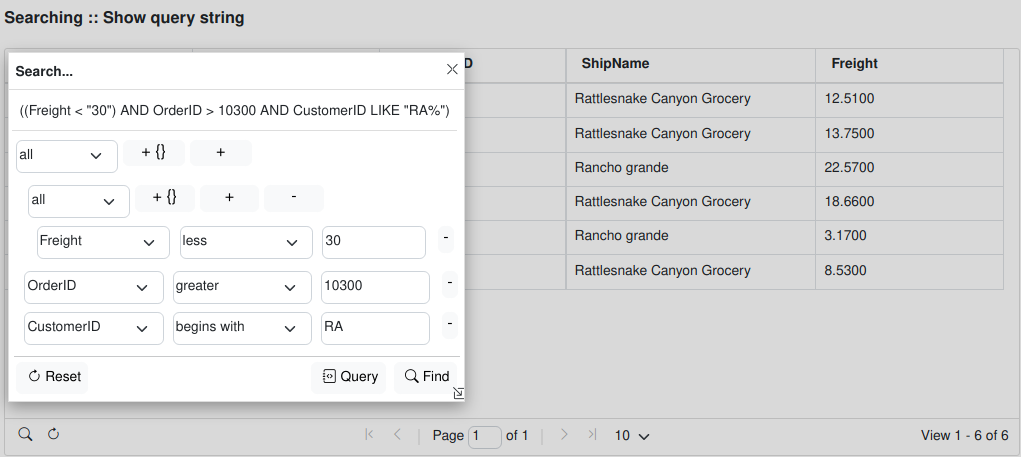
This is the default search setting in the grid and it is not needed to setup any additional options.
<?php
...
// Enable navigator
$grid->navigator = true;
// Enable search
$grid->setNavOptions('navigator', array("excel"=>false,"add"=>false,"edit"=>false,"del"=>false));
// Activate single search
To setup more advanced grouping we can activate the multipleGroup option as show in the picture above:
<?php
// Enable navigator
$grid->navigator = true;
// Enable search
$grid->setNavOptions('navigator', array("excel"=>false,"add"=>false,"edit"=>false,"del"=>false));
// Activate single search
// Activate single search
$grid->setNavOptions('search',array("multipleGroup"=>true));
Typically when this method is called it launches the modal dialog and makes it so the grid inaccessible until the dialog is closed. As can be seen the user can add or delete an unlimited number of conditions to perform the search.
To add a condition the plus button should be pressed. To delete a condition the minus button should be pressed
This method uses the following properties from language file grid.locale-xx and they can be passed in the options array of the search method
$.jgrid.regional["en"] = {
  ...
    search : {
        caption: "Search...",
        Find: "Find",
        Reset: "Reset",
        odata: [{ oper:'eq', text:'equal'}, { oper:'ne', text:'not equal'}, { oper:'lt', text:'less'},{ oper:'le', text:'less or equal'},{ oper:'gt', text:'greater'},{ oper:'ge', text:'greater or equal'},{ oper:'bw', text:'begins with'},{ oper:'bn', text:'does not begin with'},{ oper:'in', text:'is in'},{ oper:'ni', text:'is not in'},{ oper:'ew', text:'ends with'},{ oper:'en', text:'does not end with'},{ oper:'cn', text:'contains'},{ oper:'nc', text:'does not contain'},{ oper:'nu', text:'is null'},{ oper:'nn', text:'is not null'}, {oper:'bt', text:'between'}],
    groupOps: [{ op: "AND", text: "all" },{ op: "OR",  text: "any" }],
        addsubgrup : "Add subgroup",
        addrule : "Add rule",
        delgroup : "Delete group",
        delrule : "Delete rule"
    ...
    },
...
}
The method uses the same options as those from Single Searching plus the following optins which are listed here
Custom searching
As of version 5.4 of Guriddo jqGrid we support custom searching. This feature allow the developer to define his own search rules. It is important to note that this option is applicable only when the datatype is local or option loadonce is set to true (which at end set datatype = 'local'). This to use this type of search JavaScript code should be written. Detailed explanation on how to use this type of searching can be found here
Search all fields
This type of searching allow to search on all fields in grid data using single input value. For this purpose the developer should create a input field and bind a JavaScript method to it. Below is example on how we can do this in PHP:
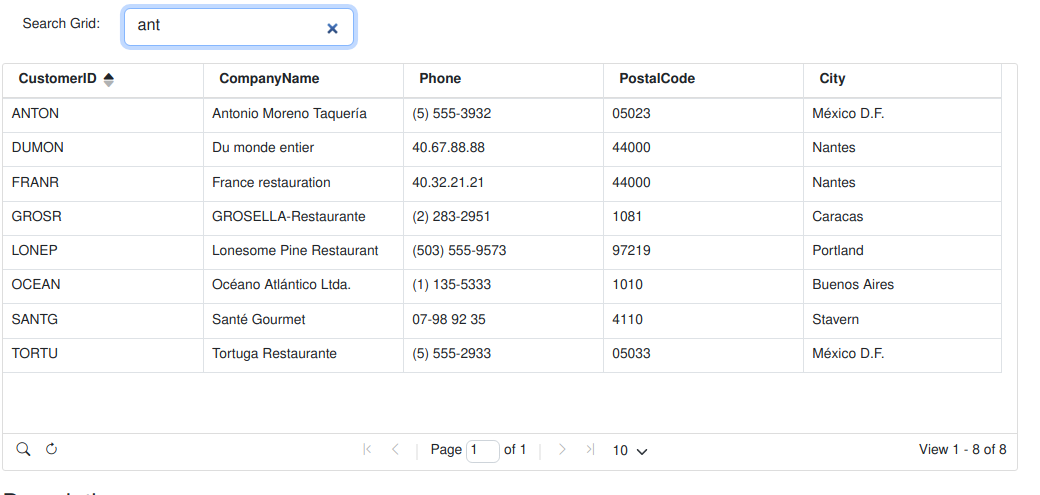
<?php
...
use Guriddo\Utils\Utils;

// Connection to the server
$conn = new PDO(DB_DSN,DB_USER,DB_PASSWORD);
// Tell the db that we use utf-8
$conn->query("SET NAMES utf8");


$oper = Utils::GetParam('oper',false);
$html = <<<HTML
    <div class="mb-3 row" style="width:700px">
        <label style="width:120px;text-align:right;" for="search_cells" class="col-sm-2 col-form-label">Search Grid: </label>
        <div class="col-sm-10" style="width:250px">
            <input class="form-control" id="search_cells" type="search"/>
        </div>
    </div>
HTML;
// do not create the field every time the script is called
// or simple you can opmit the above if the input field is created
// in the html template
if(!$oper) {
    echo $html;
}


// Create the jqGrid instance
$grid = new Guriddo\jqGrid\Render\Render($conn);
// Write the SQL Query

$grid->SelectCommand = 'SELECT CustomerID, CompanyName, Phone, PostalCode, City FROM customers';
// set the ouput format to json
$grid->dataType = 'json';
// Let the grid create the model
$grid->setColModel();
// Set the url from where we obtain the data
$grid->setUrl(Utils::fileUrl(__FILE__));
// Set some grid options
$grid->setGridOptions(array(
    "rowNum"=>10,
    "rowList"=>array(10,20,30),
    "sortname"=>"CustomerID"
));
// call the mthod via JavaScript
$code = <<<CODE
    var timer;
    $("#search_cells").on("keyup", function() {
        var self = this;
        if(timer) { clearTimeout(timer); }
        timer = setTimeout(function(){
            //timer = null;
            $("#grid").jqGrid('filterInput', self.value, {searchAll:true});
        },0);
    });
CODE;
$grid->setJSCode($code);
// Enable navigator searching
$grid->navigator = true;
// Set which buttons should be visible
$grid->setNavOptions('navigator',array("add"=>false,"edit"=>false,"del"=>false,"view"=>false,"excel"=>false));
// Enjoy
$grid->renderGrid('#grid','#pager',true, null, null, true,true);
The method has the following parameters
<script>
...
jQuery("#grid_id").jqGrid('filterInput', value, options );
...
</script>
Where
- string value is the value to be searched
- object options - various options for that search with defaults:
options = {
  defaultSearch : 'cn',
  groupOp : 'OR',
  searchAll : false,
  beforeSearch : null,
  afterSearch : null,
  selectFirstFound : false,
  firstFoundTimeout : 30
}
- options have the following description
- deafultSearch - determines the default operation in searching. Default is cn contain. The option can have one of the following values defined in odata array (name property) in language file.
- groupOp - Defines how the search criteria can be set between different fields - can be OR or AND . Default is OR which mean that the where clause is like this WHERE field1 ='val' OR field2='val'....
- searchAll - By default the search is applied on fields with search=true parameter in colModel. If set to true the search is applied on all fields independent of the search parameter.
- beforeSearch or triggered event jqGridFilterInputBeforeSearch - the event occur before to apply the search. If the triggered event return 'stop' or the option event return false the search is not performed.
- afterSearch - or triggered event jqGridFilterInputAfterSearch - the event occur after the search is performed.
- selectFirstFound - boolean, select the first element after the search is applied
- firstFoundTimeout - timeout value in ms to select the first element after typing in the input.
Menu column search
This operation is a part of column menu feature in the grid and more you can find on it here
Column searching
Column search differs from standard search in that it searches for a value of a row in the available columns.
When this option is enabled the grid creates additional column at left and add a input element to every row of that column. This enables the user to focus a desired row placing the cursor at that input and perform the search. When the search is performed the value is searched "horizontally" by columns.
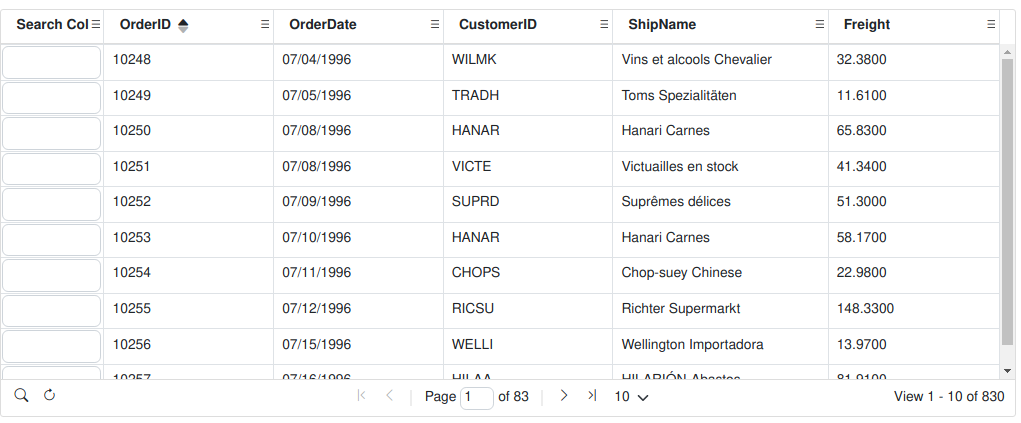
As show in the picture below if the user places the cursor at first row and enter a value of 2 then only a columns at that row which contain 2 will be shown as in the picture below.
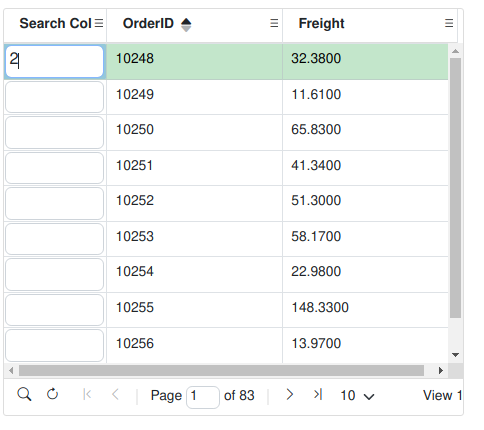
To enable this option it is needed to set the grid option searchCols to true.
<?php
...
$grid->setGridOptions(array(
    "searchCols"=>true,
    ...
));
When created the name of this column in colModel is sc .
In order to perform different search options there is additional object searchColOptions. Use again setGridOptions to change the default values
<?php
...
$grid->setGridOptions(array(
    "searchCols"=>true,
    "searchColOptions"=>array("colWidth"=>"120")
    ...
));
The default values of all available searchColOptions are
searchColOptions =>array(
    "colWidth" => 90, // default
    "colName" => "Search Col", // default header title
    "searchOp" => "OR", //default
    "operand" => "cn", // default
    "useCase" => false, // default for searching
    "colmenu" => true, // default special colmenu
    "searchOnEnter" => true // default
    "aOperands" => array('cn', 'bw', 'ew', 'eq', 'ne') // allowed options
);
- colWidth - integer - the width of the search column
- colName - string - the name which appear in the table header
- searchOp - string - Search operation between the rows. Can be OR or AND. This option determine how to logically concatenate the results from different rows.
- operand - string - determines the how to search the value in the columns. Default is cn which mean value is contained in the column. The possible options are defined in aOperands option below.
- useCase - boolean - determines is the search should be case sensitive or not.
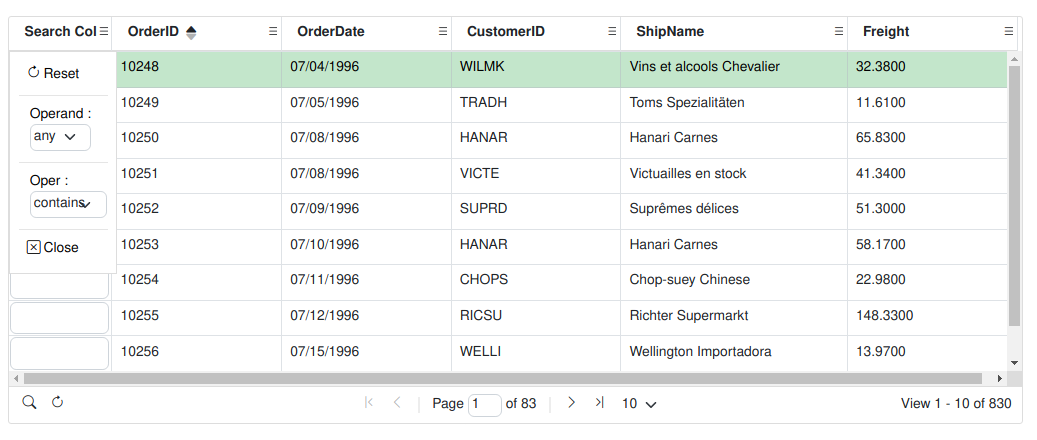
- colmenu - boolean - if set to true creates a special column menu to control different search options visually. The menu appear only when colMenu option in grid is enabled. See the picture below.
- searchOnEnter - boolean - determines how to perform the search. If true the search is performed only when the user press a enter key. If set to false the search is performed after a key is entered in the input.
- aOperands - array with string elements - determines the available options on how to search the value in the columns. The currently available options are :
- cn - contains
- bw - begin with
- ew - ends with
- eq - equal
- ne - not equal
If colMenu grid option is enabled there is a special menu for this column